Client Portal · for developers
Your buyer follows the project. Your resident talks to you.
A public progress link under your brand and, after handover, a portal for service requests, bookings and notices. All of it fed by the project itself.
Buyer or resident? Use the link or the QR code you received: this page is for developers.
Demo · Residencial Horizonte demo project
What the buyer sees: the project, no login.
A public page, open to anyone with the link, on a phone or a computer: the month's photos and videos and the ten stages of the development, each with its own progress bar, in the format of the progress report the buyer already knows.
The page opens on the most recent month and keeps the earlier ones: the buyer watches the project progress, month by month.
Where the number comes from
Progress comes from the project, not from a slide.
No one works out the month's percentage by hand. Each stage is linked to the project schedule, and the number the buyer reads is the progress the project measured. Dragging a date in the schedule doesn't change that number: only the measurement does.
- Construction Execution
- Earthworks
- Foundations
- Structure
- Plumbing/ Electrical
- Masonry/ Finishes
- Painting
- Exterior paving
- Common area decor and furniture
- Landscaping
The default names of the ten stages. Each project can rename them; the first, Construction Execution, is usually the project total.
Photos and videos: up to 10 photos and 2 videos of up to 3 minutes each month, and the page keeps the earlier months.
Resident Portal · from Genba up
After key handover.
After handover, the resident signs in to the portal from their phone, with their CPF and a password, and there they:
- 01
Open service requests, with a deadline.
Requests go to warranty service, and the first response has a deadline: 48 hours by default, adjustable per brand. Your team sees how much time is left on each request. Above the queue: how many requests are past the deadline and the on-time response rate; in Portfolio, the total across all projects.
- 02
Book the common areas.
The resident asks and your team decides on each booking.
- 03
Receive the notices for their tower.
As well as the notices for the whole project.
- 04
Find the documents for their unit.
Those for their unit and those for the whole project, in one place.
- 05
Request the services you offer.
Renovation, decoration or services from your partners: you choose what to offer inside the portal. The request lands in the same queue as the service requests, with each service's time to first response.
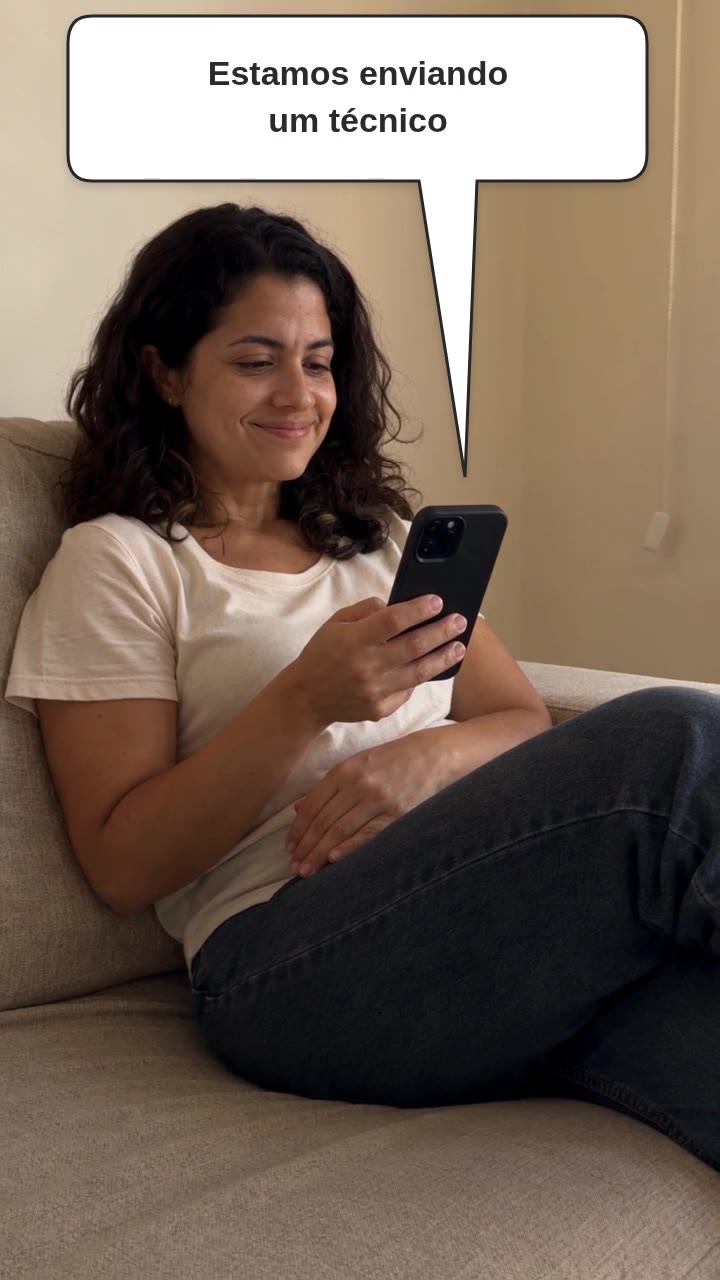 Watch the resident open two requests from her phone · 28 sIllustration with demo data
Each resident only sees what is theirs. The contractor never loses touch with its buyers.
Under your brand · once per brand, across all its projects
Under your brand.
The buyer and the resident recognize the developer they bought from. What you set up in the brand applies to all its projects:
- 01
Background.
The photo you choose behind the login, with a dark overlay so the text stays readable. Without a photo, a gradient in the portal color.
- 02
Logo.
Your brand's logo above the login, on a white panel: a dark or colored logo shows up well.
- 03
Portal name.
On the sign-in screen and at the top of the portal. If no name is set, it shows “Resident Portal”.
- 04
Color.
The sign-in button, the header, the tabs and the portal buttons in your brand color; the text color adjusts by itself to stay readable.
- 05
Home screen icon.
Your portal's icon and name on the home screen of the resident's phone.
On the progress page, each project also has the top headline, the background color, the development's logo and the brand logo in the footer.
Isolation · by unit and by project
Each resident only sees what is theirs.
- 01
CPF login.
The resident signs in with the CPF and password your team registered, along with their units. The portal gives no access to anything in the office.
- 02
Separated by unit and by project.
Notices, documents, common areas and requests, only for the projects where they own a unit. The notice for tower A doesn't reach tower B, and a unit's document only appears to the people it belongs to.
- 03
Two units, one CPF.
Anyone who bought two units from your company has a single registration, with one login, and sees both.
Different developers using BuildSphere have separate portals: one can't see the other's residents.
Questions · four notes
Before turning on the portal.
N-01How much does it cost? And does the resident pay?
The resident pays nothing and doesn't count as a person on your bill. The bill is per person on your team who uses the BuildSphere office: whoever answers the requests and registers the residents is also one of those people.
The public progress link is on every plan, including the free one. The Resident Portal comes from Genba up, at {preco:genba:1} per person, and one person in the company on Genba is enough to turn it on for the whole company.
N-02Does the resident need to install anything?
No. The portal opens in the phone's browser, through the link your team sends or the QR code printed in the lobby or in the unit manual. They sign in with their CPF and a password.
Anyone who wants to can save the portal to the home screen, like an app, with your brand's icon and name.
N-03What if the progress link leaks?
You generate another one. The “New link” button changes the address and invalidates the previous one; if you prefer, you can also deactivate the page.
And the link only shows the project's progress: the stages, the photos and the month's videos.
N-04My engineering team doesn't plan in BuildSphere. Does the link work?
The percentage comes from the project schedule and from what the field measures against it, so the project needs to be here. The schedule comes in by spreadsheet, with no consultants, and the field logs on the phone without counting toward the bill.
A stage with no linked schedule shows 0%: the link doesn't make up numbers.
Plans · per engineering team member, per month
The link on every plan. The portal from Genba up.
The public progress link is on every plan. The Resident Portal comes from Genba up, at {preco:genba:1} per engineering team member, with unlimited projects and field crew.
- Aprendiz · Canteiro · HanseiPublic progress link
- Genba · Kaizen · JidokaPublic progress link Resident Portal
The resident doesn't pay and doesn't count as a person. One person in the company on Genba is enough to turn the portal on for the whole company. Whoever on your team answers the requests counts toward the bill like anyone in the office. More than ten people in the office? The bill is worked out with you. Launch price until 12/31/2026.
Get started
Start with the progress link for your next project.
Create a free account, upload the project schedule by spreadsheet and link the ten stages to it: from then on, the buyer sees, through the link, the progress the project measures. The Resident Portal comes in when one person in your company is on Genba.
The intelligent way to build as one